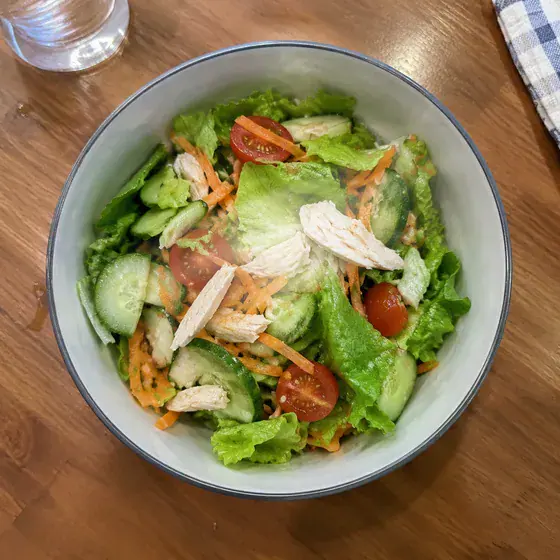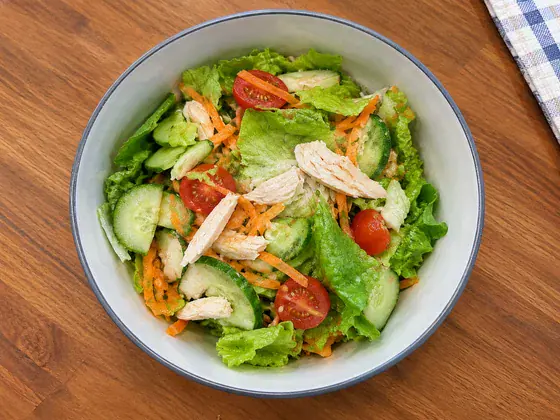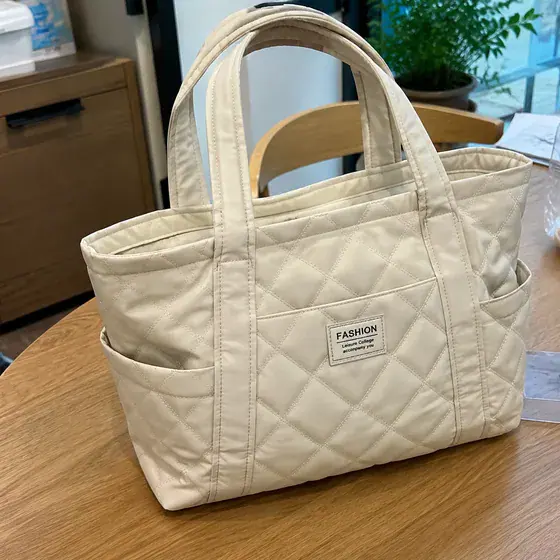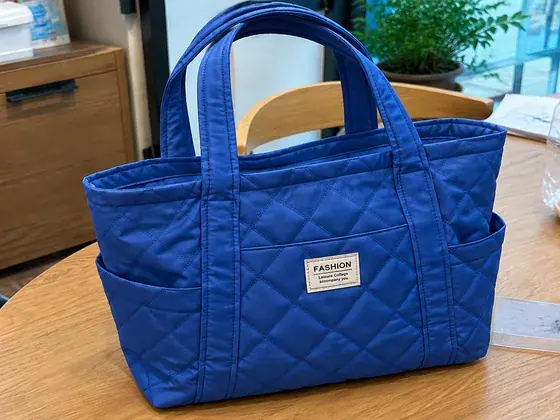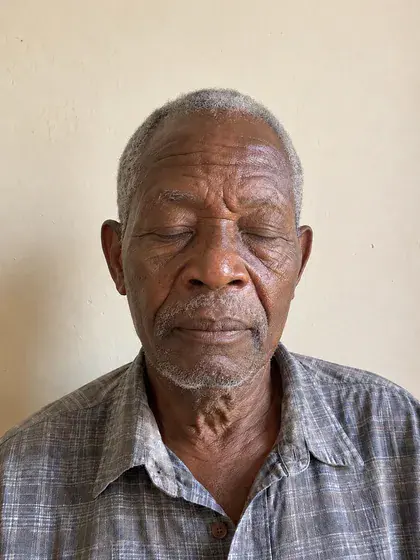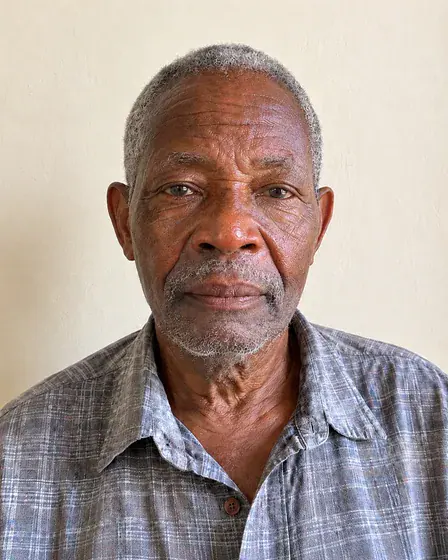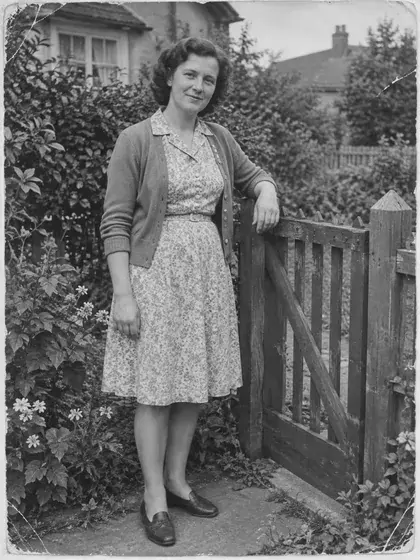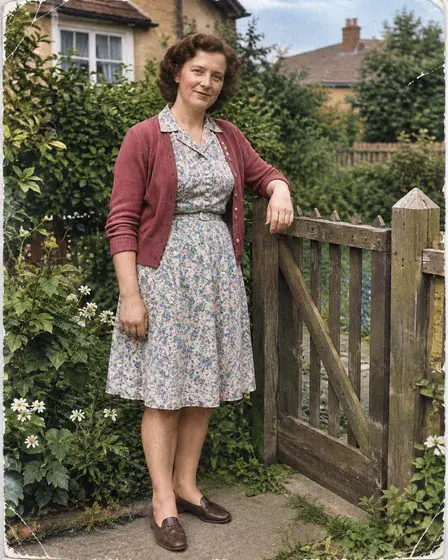
What this workflow creates
Add or replace an object in a photo using text. One image per request.
- Who it’s for
- Designers, ordinary users
- What it does
- Partially redraw a specified area
- Where to use it
- Design and retouching
One image per request.
What you need
- Original scene image to be partially editedRequired · 1 image
- Preserve untouched regions, camera viewpoint, depth of field, lighting, and occlusion.
- Local editing instructionsRequired · 1 item
- Describe the objects added or replaced, their quantities, materials, and target locations.
- Add/replace area masksOptional · 0 or 1 image
- Define the exact boundary of the new or replaced object.
When to provide it: When the local edit boundary must be defined precisely
Provide every required input. Add optional inputs only when useful, and mark conditional inputs as applicable only when they apply to this request.
How to use this workflow
Open the generation form
Select “Use this workflow” to see the required inputs. You’ll need to sign in before generating.
Add the required inputs
Prepare: Required original scene image to be partially edited (1 picture) + Required partial editing description (one set) + Optional adding/replacing area mask (0 or 1 picture). Complete every required field, add optional inputs only when useful, and mark each conditional input as applicable or not applicable.
Review text and output settings
Check “Local editing instructions” for accuracy, then choose the aspect ratio, resolution, and quality that fit this use case. The generation form shows the available options.
Generate and review
Select “Generate image,” then review the result and open the full-size image. Check it against the detailed requirements below. One image per request.
Do I need to write a prompt?
No full prompt needed—just complete the required text fields.
Complete “Local editing instructions” to describe what this request should contain or create. You do not need to write generation instructions. Use the form fields to provide the images, exact copy, data, or description requested by this workflow.
Detailed result requirements
Required original scene image to be partially edited (1 picture) + Required partial editing description (one set) + Optional adding/replacing area mask (0 or 1 picture)
Original image and use the brush to explicitly select the area you want to edit.
No universal public standard is available. Check the requirements of the platform or service you will use.
Set the output canvas from the selected platform placement or production template, not from a reference image. Choose the option that matches this request: Modified image working canvas — 4:3 (recommended). Use a different ratio only when a verified placement or production template requires it. If the platform does not require a fixed aspect ratio, use 4:3 as the recommended working canvas for modified image. Compose the subject with appropriate breathing room. Create one aspect-ratio-specific deliverable per request; generate each additional placement as a separate output. Recompose for the selected ratio while preserving the complete subject, all text, and every required safe area. Never stretch the subject or treat cropping important content as adaptation.
Content outside the selection, perspective, light and occlusion relationships.
To adjust the size/hardness of the brush, you can add a reference image and describe the new/replaced items in text.
No universal public standard is available. Check the requirements of the platform or service you will use.
No universal public standard is available. Check the requirements of the platform or service you will use.
No universal public standard is available. Check the requirements of the platform or service you will use.
No universal public standard is available. Check the requirements of the platform or service you will use.
No universal public standard is available. Check the requirements of the platform or service you will use.
Check the number of new objects, shadows, scale and interaction with the original scene one by one.
Official and platform requirements
No universal public standard is available. Check the requirements of the platform or service you will use.
FAQ
What can I create with this workflow?
Add or replace an object in a photo using text. One image per request.
Do I need to write a prompt?
Complete “Local editing instructions” to describe what this request should contain or create. You do not need to write generation instructions. Use the form fields to provide the images, exact copy, data, or description requested by this workflow.
What do I need to upload?
“Original scene image to be partially edited”: 1 image; required; “Add/replace area masks”: 0 or 1 image; optional (When the local edit boundary must be defined precisely). JPG, PNG, and WebP are supported, up to 10 MB per image.
What does one generation produce?
One image per request.
Common search terms
Public evidence and sources
1 directly relevant public source has been found, and 5 types of specific constraints have been extracted. The following content only restates information that appears clearly from the source; no filling in of blank fields will be made.