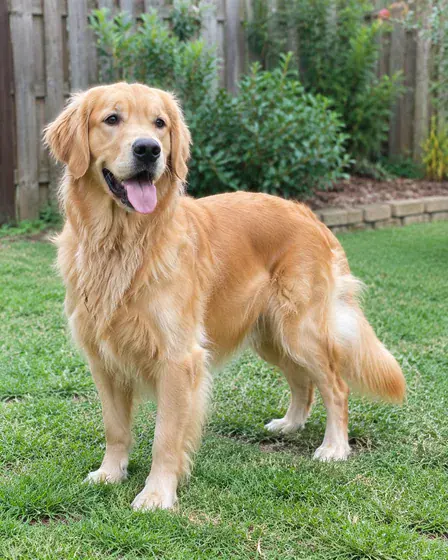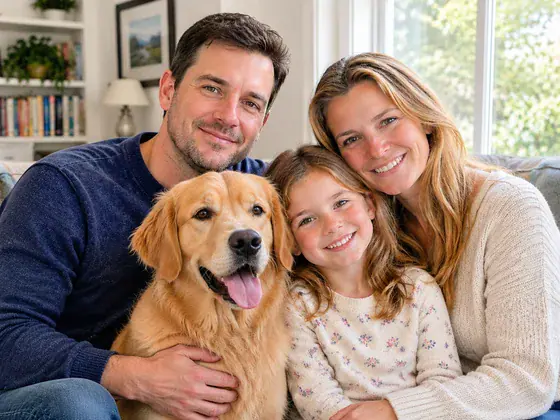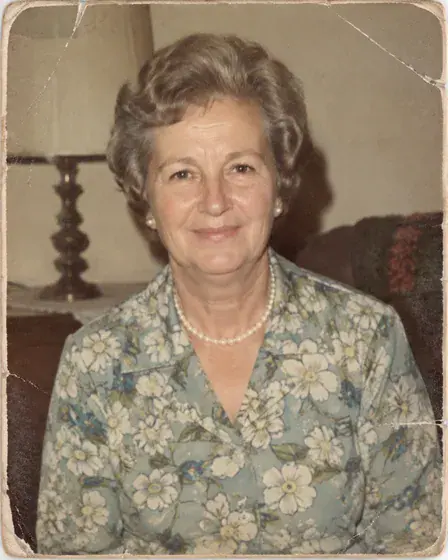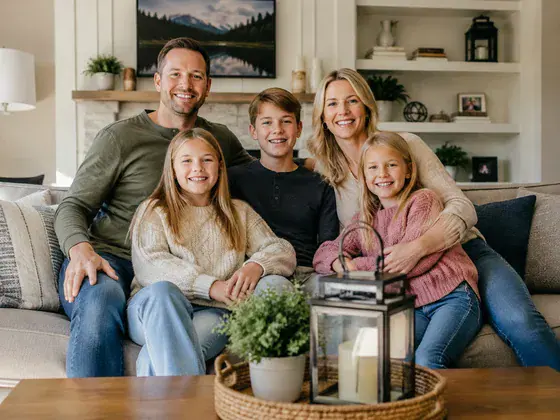
What this workflow creates
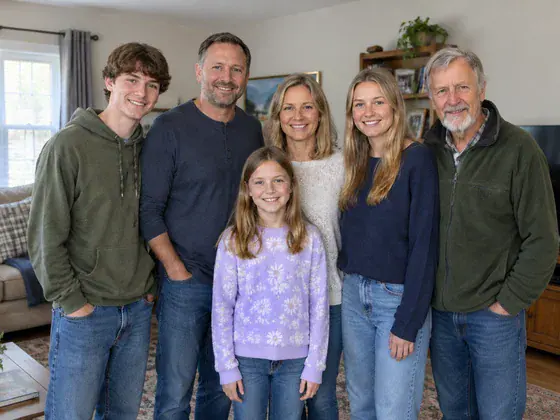
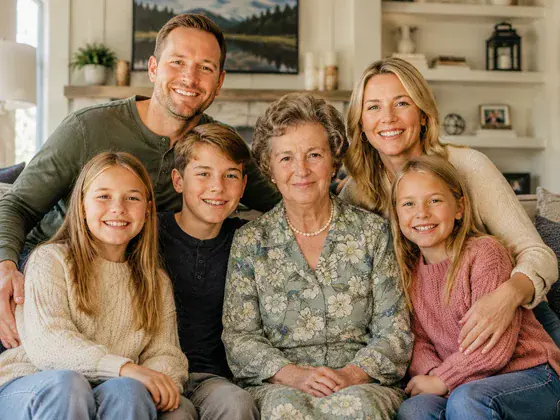
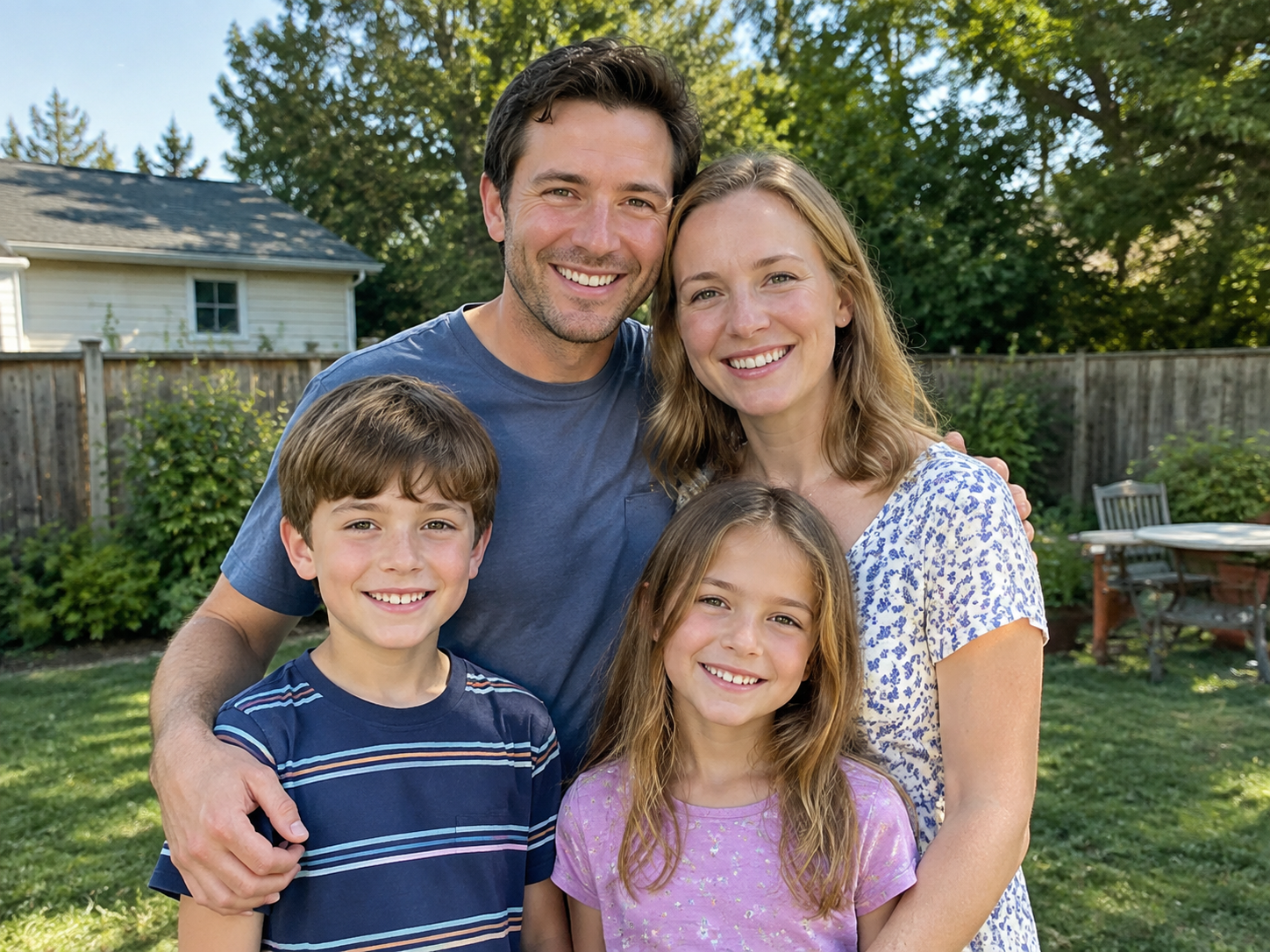
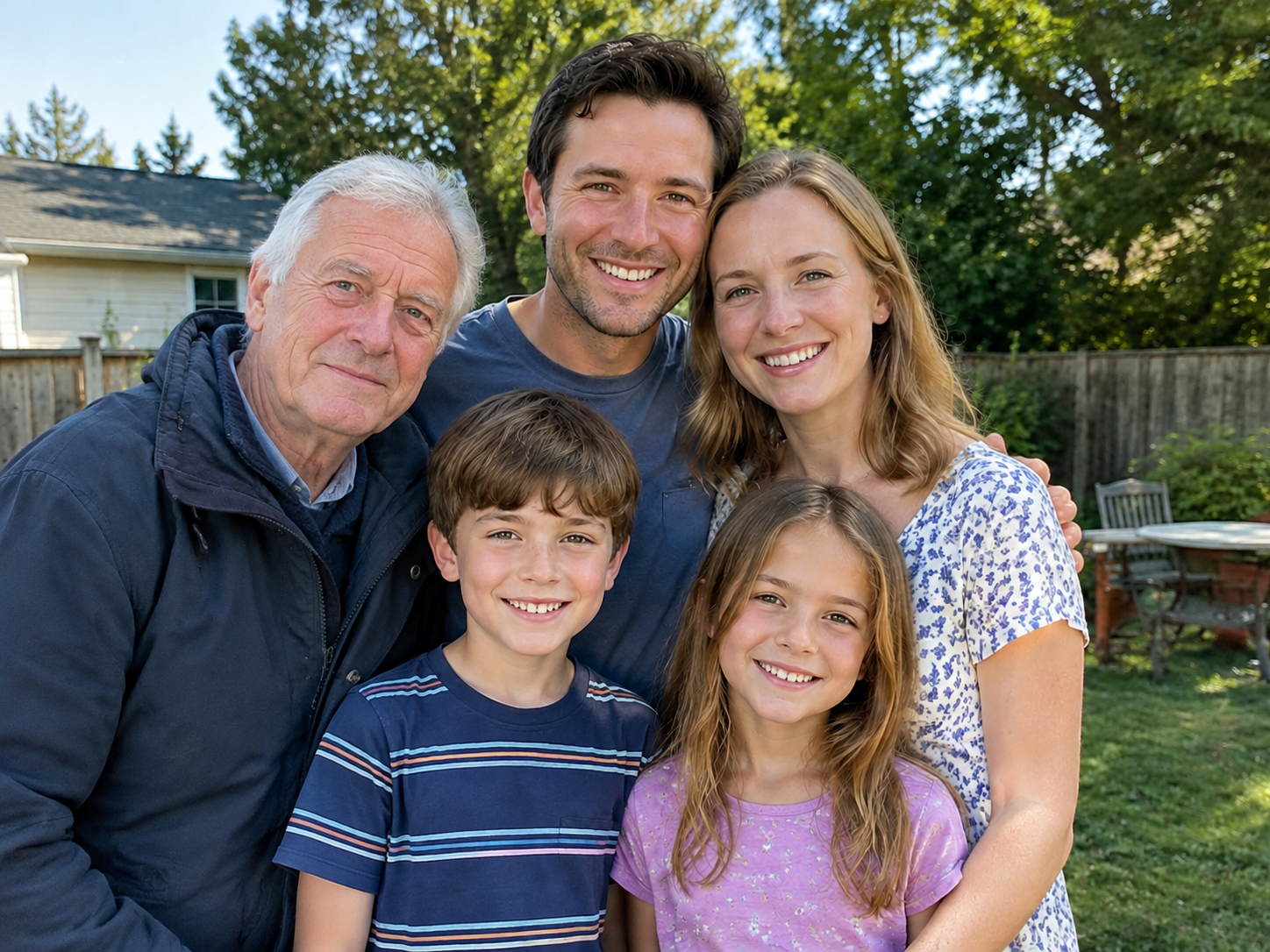
Add an absent family member to a group photo. One image per request.
- Who it’s for
- home user
- What it does
- Add absent members and match footage
- Where to use it
- reunion, commemoration
One image per request.
What you need
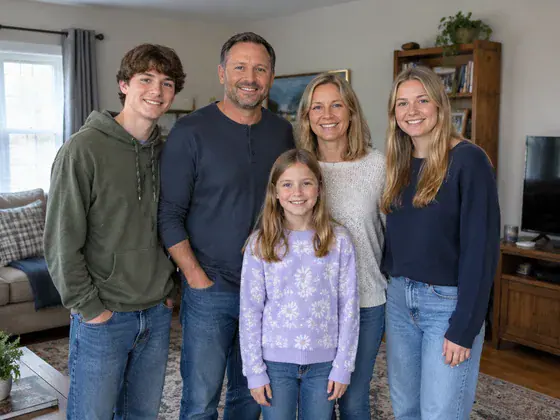
- Original family photoRequired · 1 image
- Provide original members and scenes
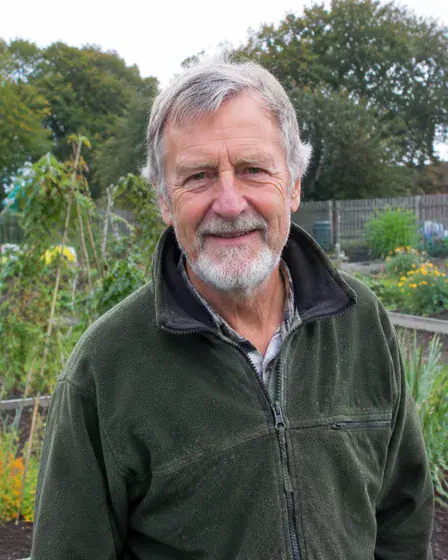
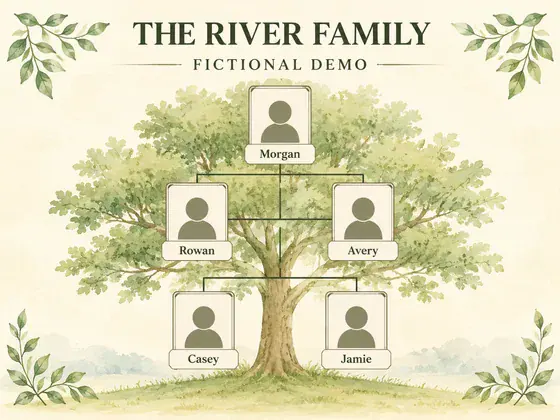
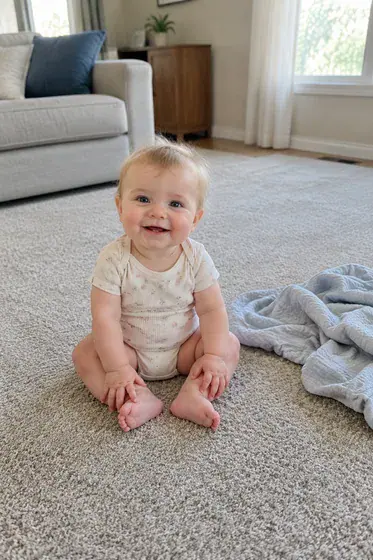
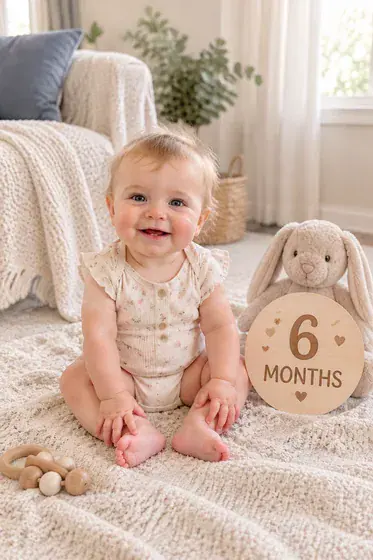
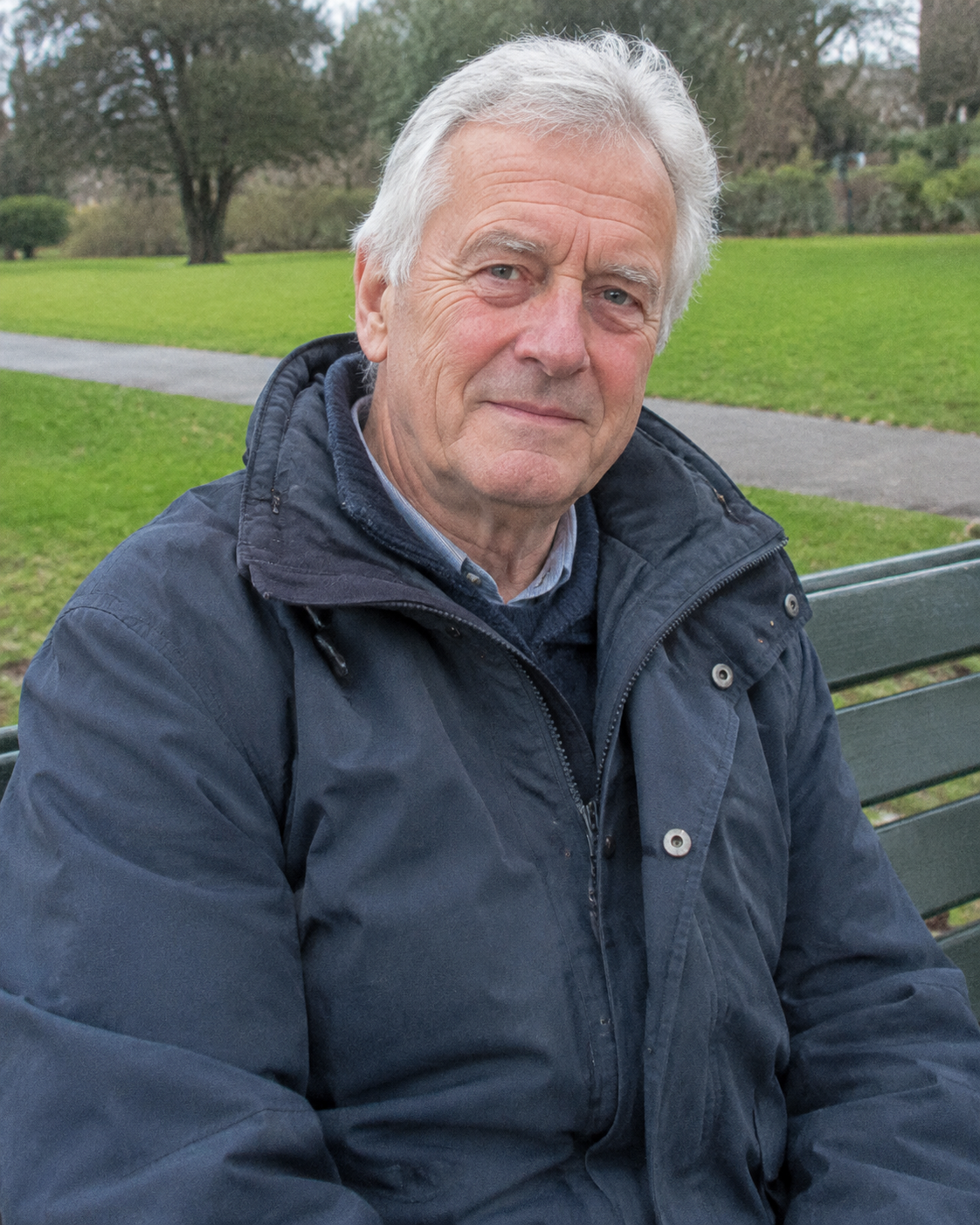
- Clear photos of absent membersRequired · At least 1 for each absentee
- Provide new membership
Provide every required input. Add optional inputs only when useful, and mark conditional inputs as applicable only when they apply to this request.
How to use this workflow
Open the generation form
Select “Use this workflow” to see the required inputs. You’ll need to sign in before generating.
Add the required inputs
Prepare: 1 original family photo + at least 1 clear photo of the absent member for each absentee. Complete every required field, add optional inputs only when useful, and mark each conditional input as applicable or not applicable.
Review text and output settings
Choose the aspect ratio, resolution, and quality that fit this use case. The generation form shows the available options.
Generate and review
Select “Generate image,” then review the result and open the full-size image. Check it against the detailed requirements below. One image per request.
Do I need to write a prompt?
No prompt needed—upload the required inputs.
Upload the images listed below; you do not need to add a written prompt. You do not need to write generation instructions. Use the form fields to provide the images, exact copy, data, or description requested by this workflow.
Detailed result requirements
1 original family photo + at least 1 clear photo of the absent member for each absentee
Provide clear original pictures of each character respectively to avoid screenshots and blurry pictures; clarify the number of people, the relationship and arrangement of the characters.
First determine the front and back levels, size and position, and then unify the edges, light and color; complex hair needs to refine the edges.
Set the output canvas from the selected platform placement or production template, not from a reference image. Choose the option that matches this request: Completed family photo working canvas — 4:3 (recommended). Use a different ratio only when a verified placement or production template requires it. If the platform does not require a fixed aspect ratio, use 4:3 as the recommended working canvas for completed family photo. Compose the subject with appropriate breathing room. Create one aspect-ratio-specific deliverable per request; generate each additional placement as a separate output. Recompose for the selected ratio while preserving the complete subject, all text, and every required safe area. Never stretch the subject or treat cropping important content as adaptation.
Preserve the person’s identity and recognizable facial features, including the person being remembered.
No universal public standard is available. Check the requirements of the platform or service you will use.
No universal public standard is available. Check the requirements of the platform or service you will use.
No universal public standard is available. Check the requirements of the platform or service you will use.
You can specify a name, date, phrase or condolence text.
No universal public standard is available. Check the requirements of the platform or service you will use.
Common transaction samples are delivered as 300DPI high-resolution files; a layered edited version should be saved separately.
Preview and proofread the identity, arrangement and text first. The details generated from the low-definition source image cannot be described as a true restoration.
Official and platform requirements
No universal public standard is available. Check the requirements of the platform or service you will use.
FAQ
What can I create with this workflow?
Add an absent family member to a group photo. One image per request.
Do I need to write a prompt?
Upload the images listed below; you do not need to add a written prompt. You do not need to write generation instructions. Use the form fields to provide the images, exact copy, data, or description requested by this workflow.
What do I need to upload?
“Original family photo”: 1 image; required; “Clear photos of absent members”: At least 1 for each absentee; required. JPG, PNG, and WebP are supported, up to 10 MB per image.
What does one generation produce?
One image per request.
Common search terms
Public evidence and sources
Two directly relevant public sources have been found, and 7 types of specific constraints have been extracted. The following content only restates information that appears clearly from the source; no filling in of blank fields will be made.